
Enrichment for Bigin
Data Enrichment for Bigin
Introduction
WebAmigo brings powerful data enrichment capabilities to Bigin through our dedicated topping, available in the Bigin Marketplace. This solution enables you to:
- Enrich the leads in your "Contacts" module using our People Enrichment feature
- Enrich the leads in your "Companies" module using our Organization Enrichment feature
Why Use Data Enrichment?
Sales and marketing teams can eliminate hours of manual research by letting the topping handle data gathering automatically.
Whether you are working with a sparse contact record or incomplete company information, enrichment fills in the gaps - pulling in job titles, company details, social profiles, and more.
This gives you a comprehensive view of any contact or company instantly with a single click, helping you act quickly and make more informed decisions.
Getting Started with Installation
Installation Option 1: From Bigin's "Contact" or "Company" Record Pages
This approach lets you install the topping directly while viewing a record.
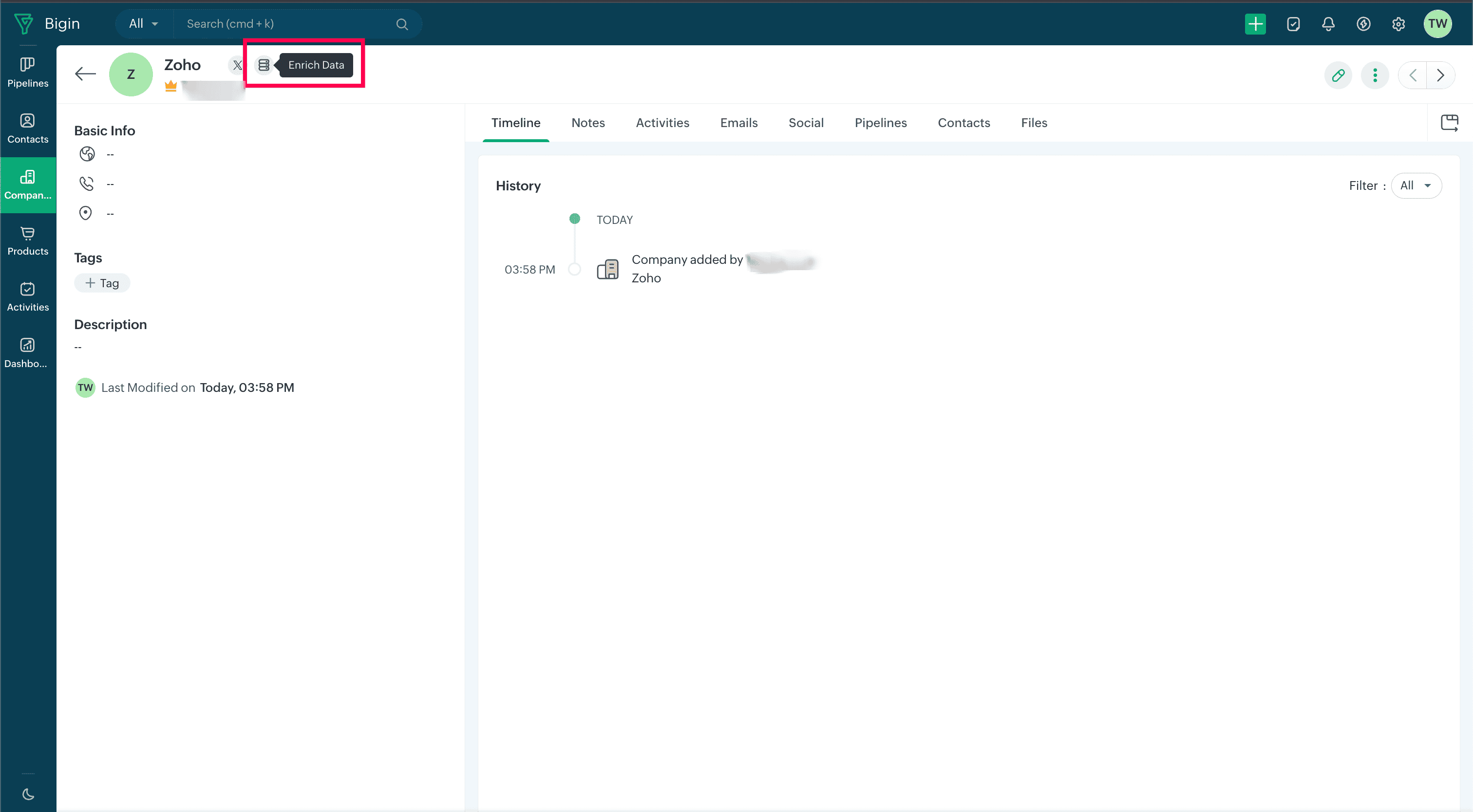
Step 1: Locate the Enrichment Icon
Navigate to any record in your "Contacts" or "Companies" module. The enrichment button appears as an icon positioned near the profile name in the top left section of the record detail page.
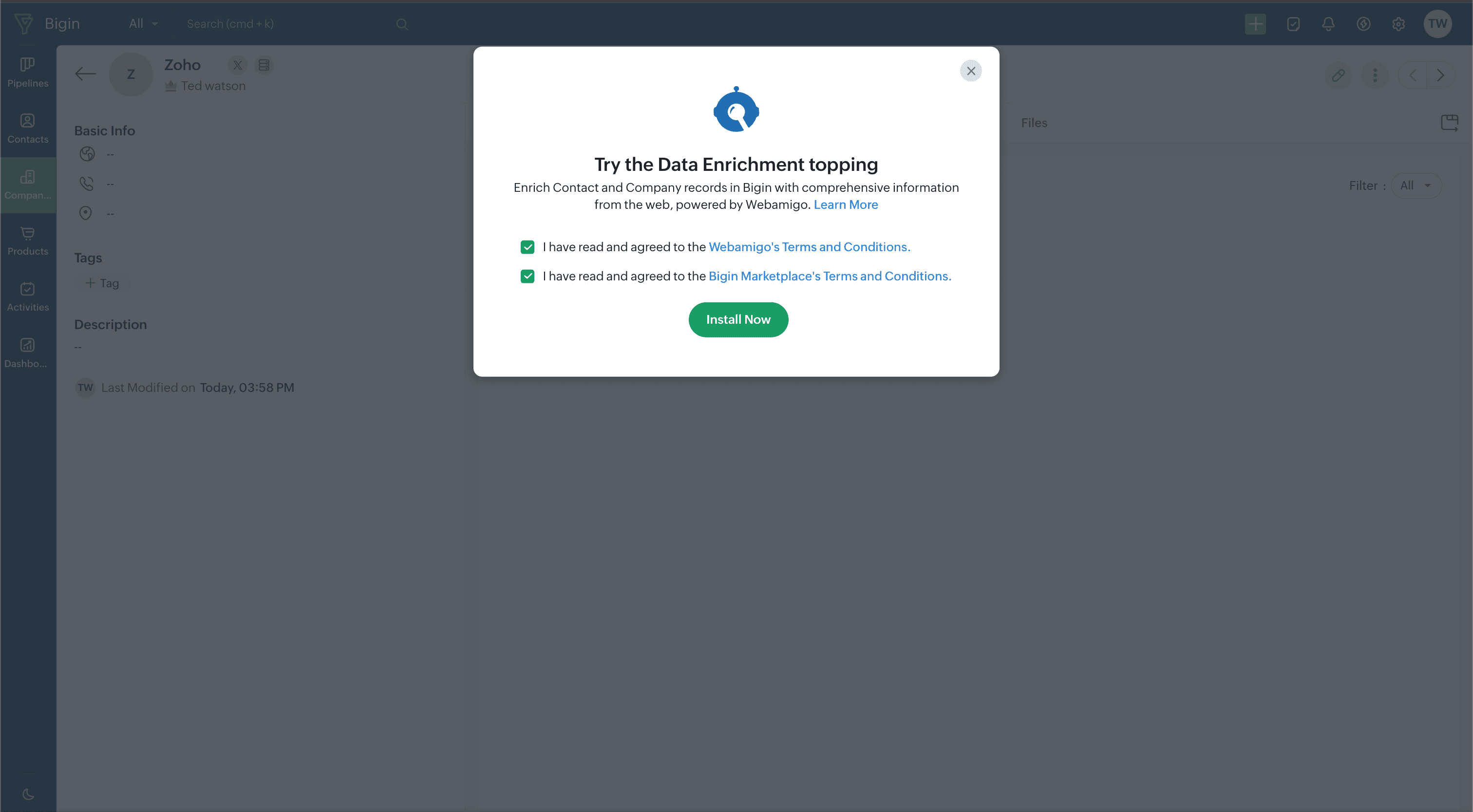
Step 2: Begin Installation
When you click the enrichment icon for the first time, you'll see a prompt to install the Data Enrichment topping. Review and accept the terms and conditions to move forward.
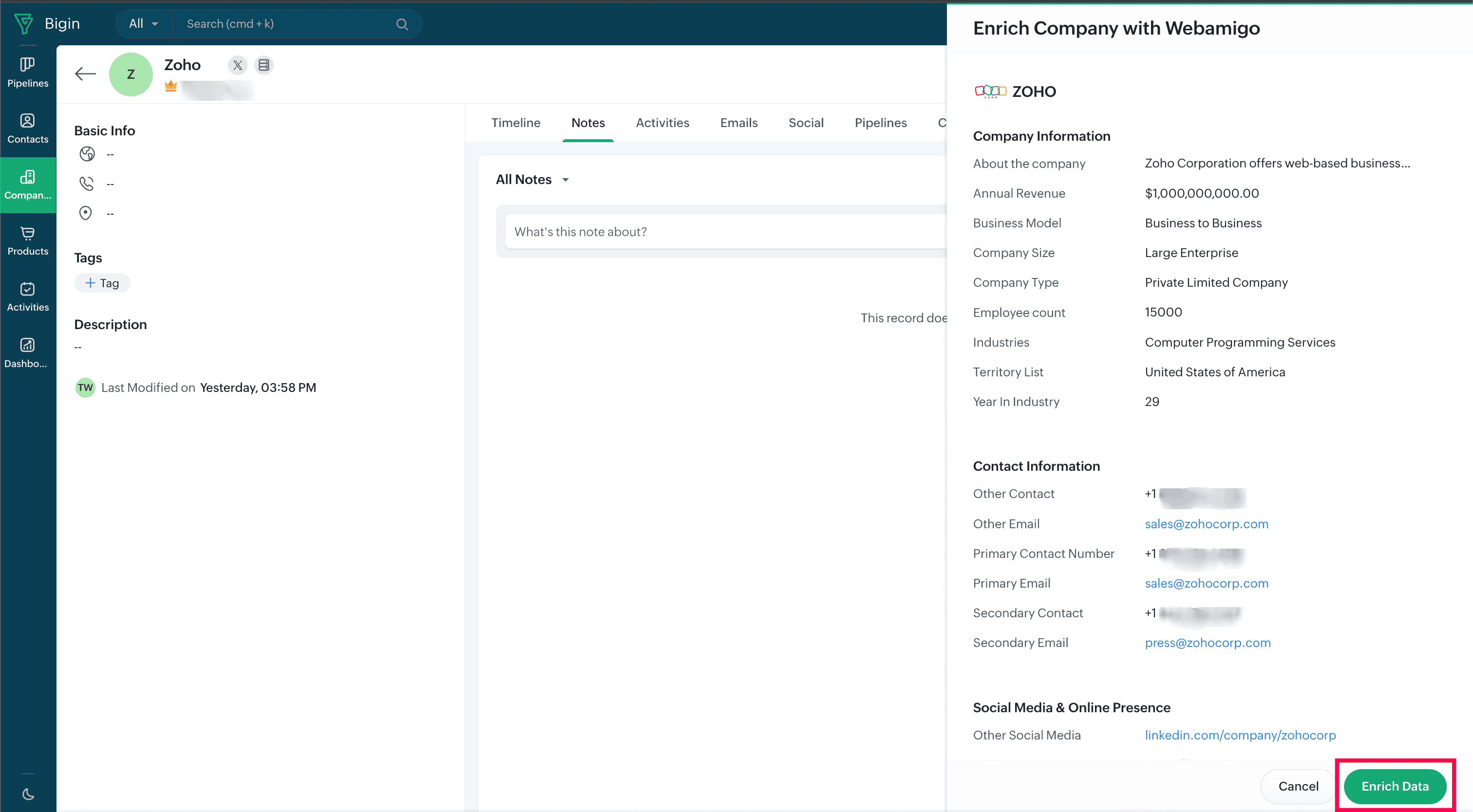
Step 3: Run Your First Enrichment
The system will display enriched information based on default field mappings. Click the "Enrich Data" button to continue with the process.
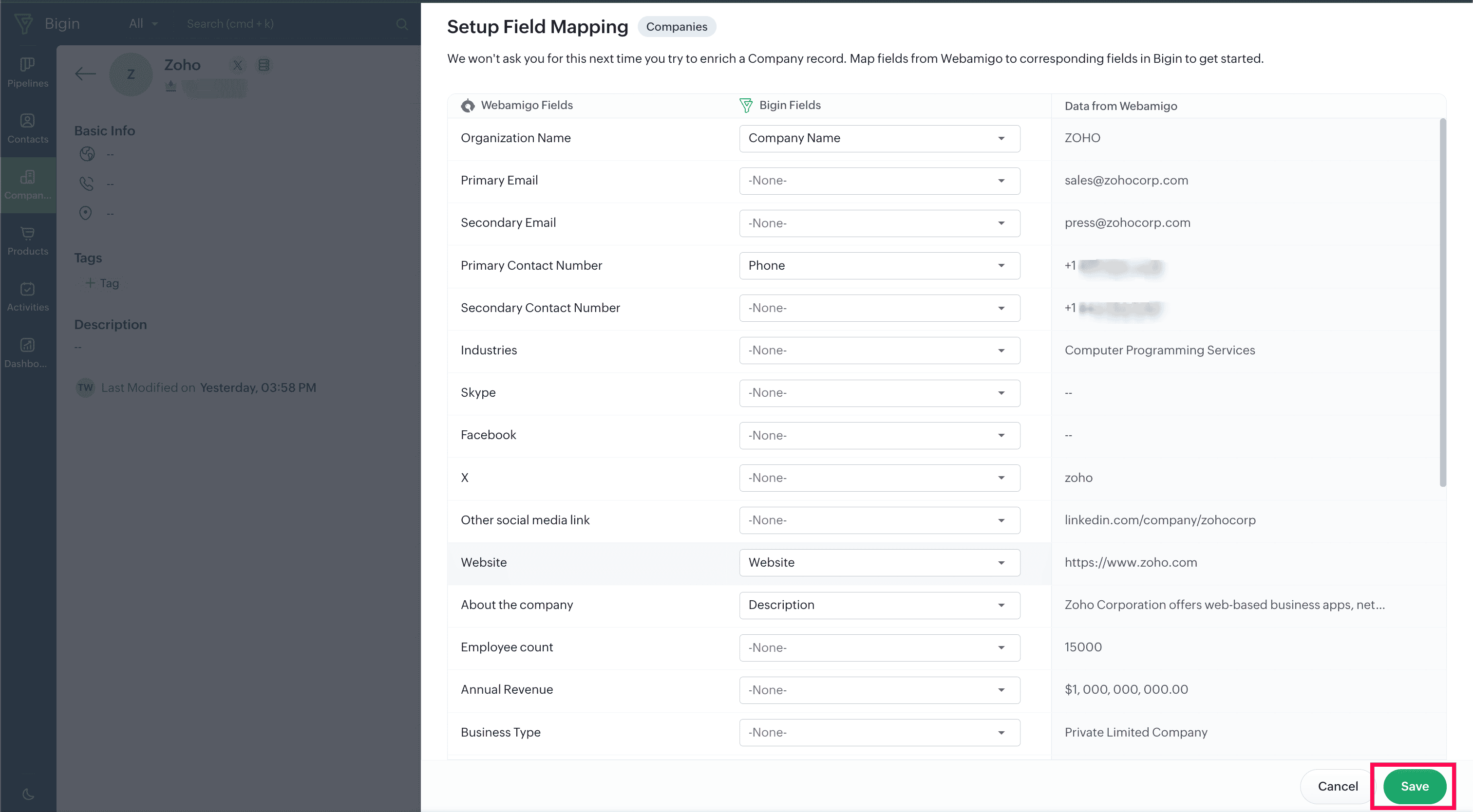
Step 4: Set Up Field Mapping
During your first enrichment, you will configure how WebAmigo fields correspond to your Bigin fields. After completing the mapping, click "Save" to store your preferences.
Step 5: Compare and Choose Data
The "Mapped Fields" tab presents a side-by-side comparison of enriched information and your existing Bigin data. Select which values you want to incorporate into your record.
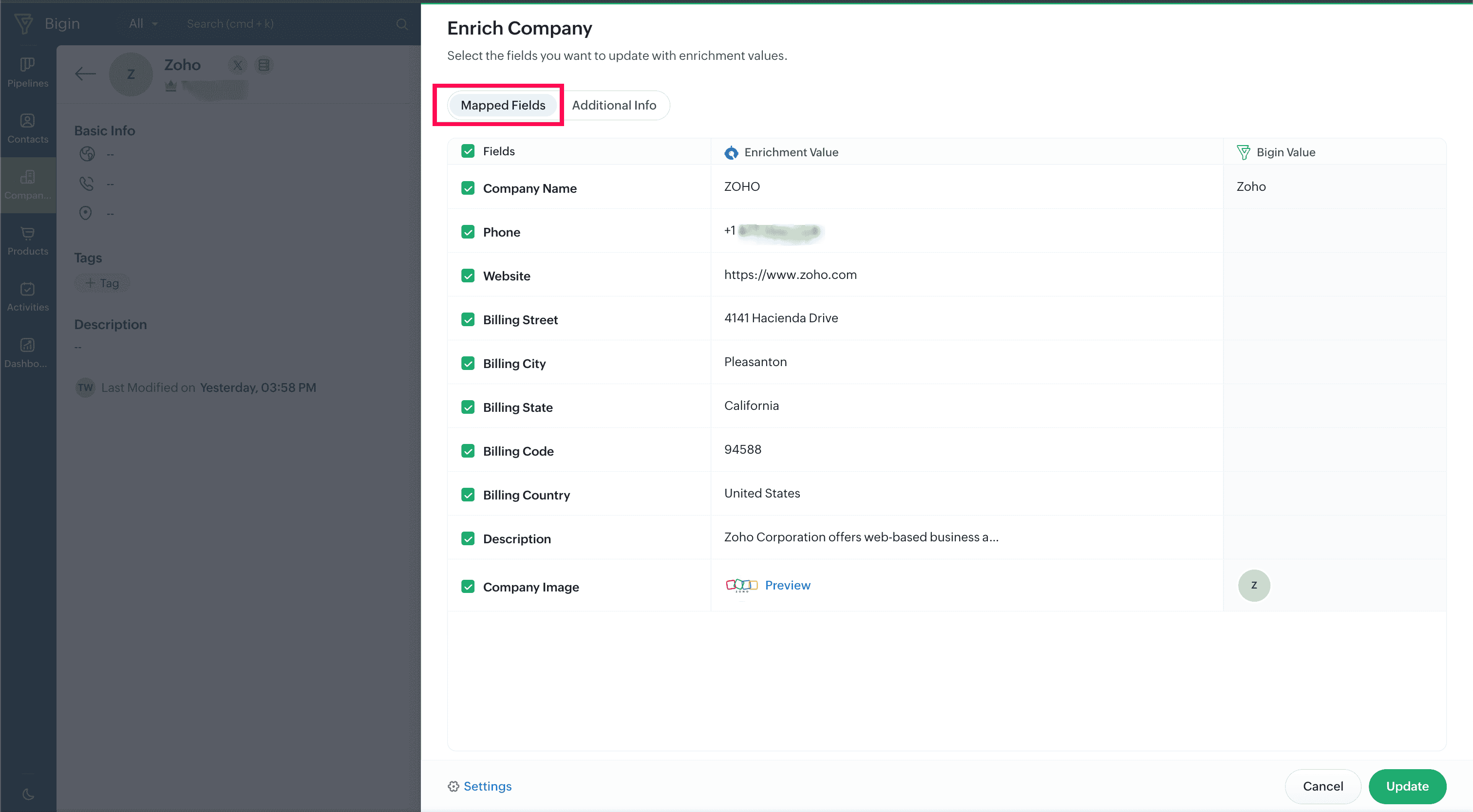
Step 6: Explore Additional Data
Switch to the "Additional Info" tab to view fields that weren't included in your initial mapping configuration. This tab often contains valuable supplementary data. Click "Update" when you're ready to apply your selections.
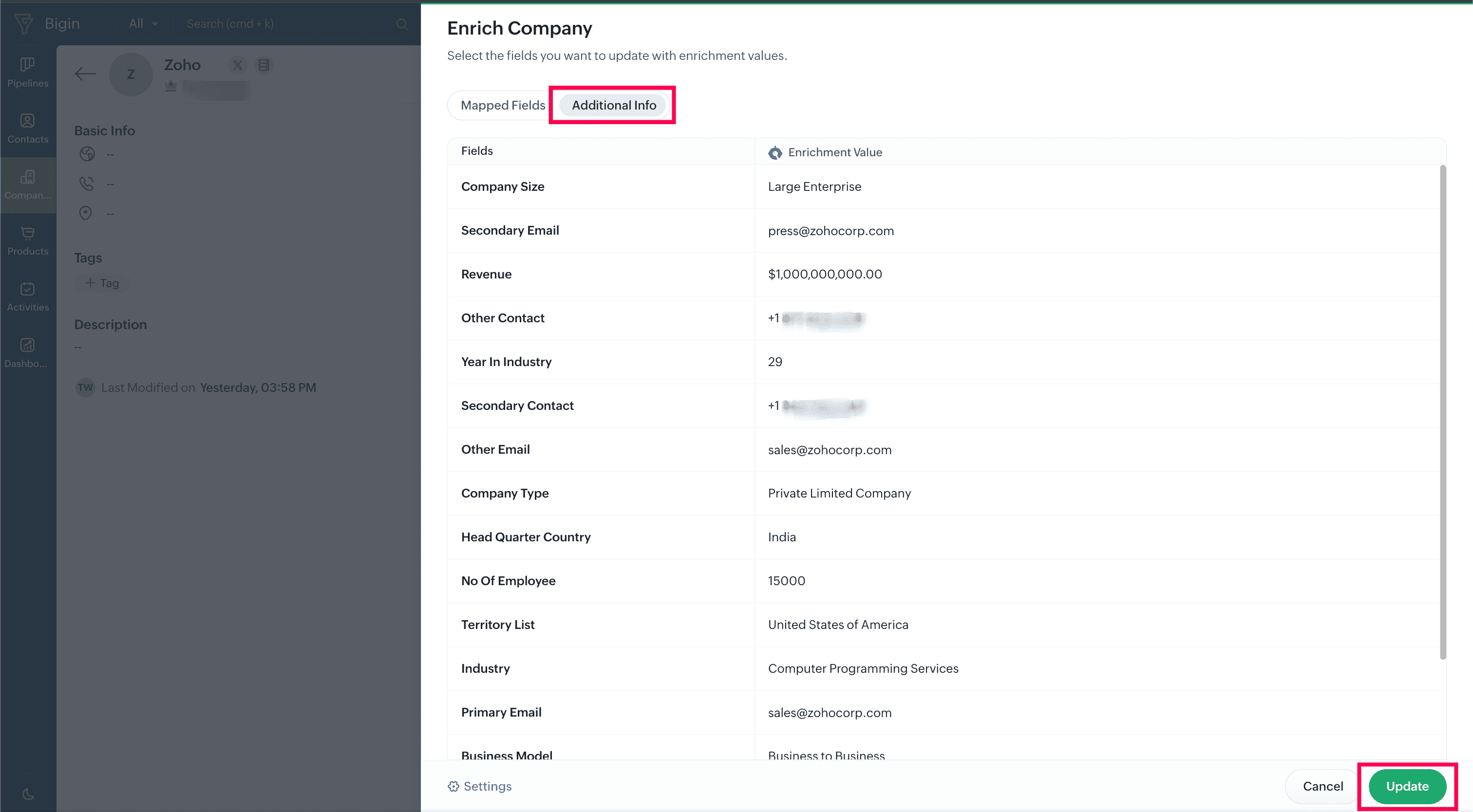
Step 7: Modify Mappings Later (When Needed)
To adjust your field mappings after the initial setup, follow this path:
Settings > Toppings > Marketplace > Installed > Data Enrichment Powered By WebAmigo > Settings > Edit
Installation Option 2: Via Bigin Marketplace
Step 1: Open the Marketplace
Sign into your Bigin account and go to Settings > Toppings > Marketplace to access the available toppings.
Step 2: Add the Extension
Locate "WebAmigo Data Enrichment" in the marketplace listings and click "Install". You'll need to accept the terms and conditions to proceed.
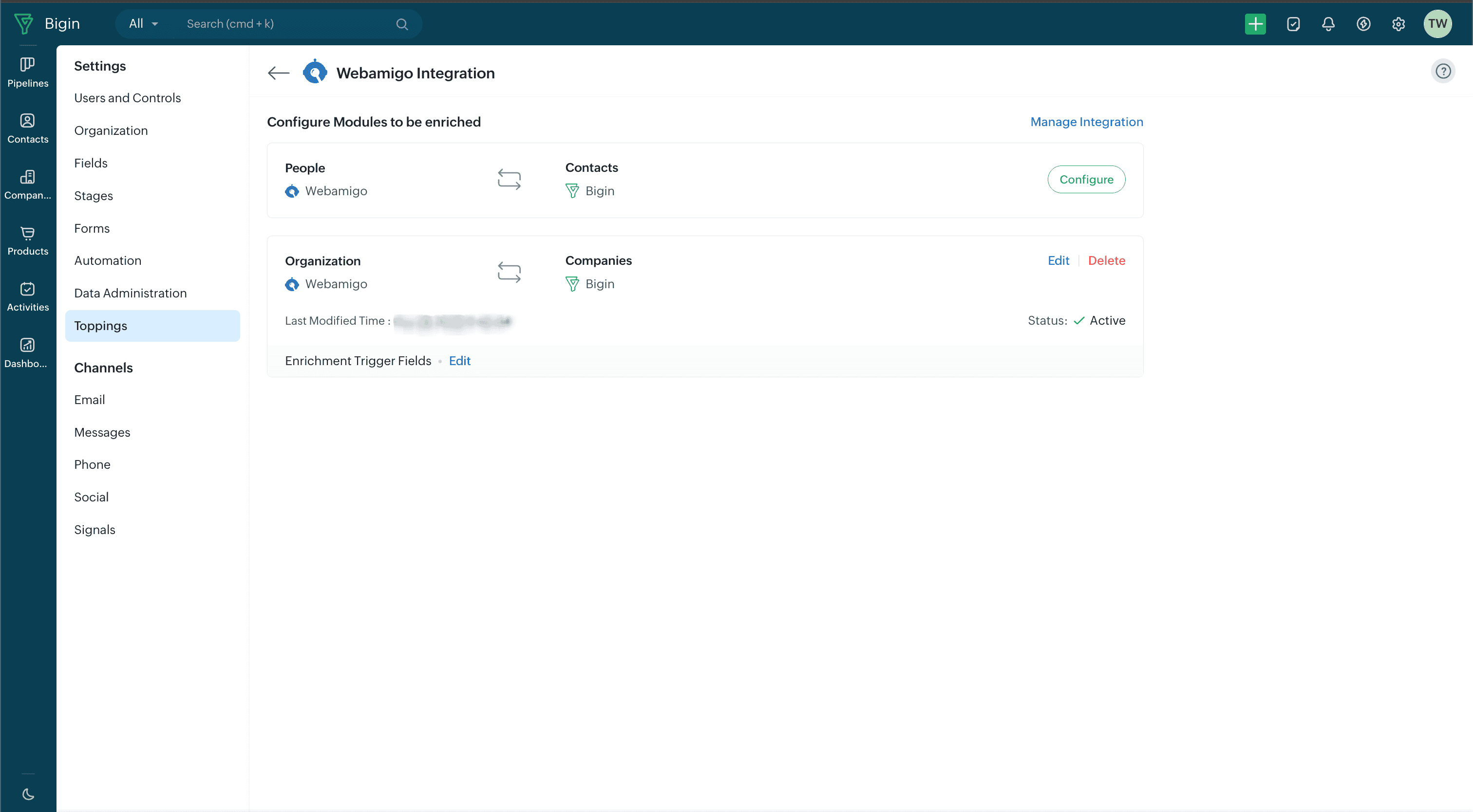
Step 3: Complete Field Mapping Setup
After successful installation, configure your field mappings for both enrichment types: "People" enrichment for Contacts and "Organization" enrichment for Companies. Connect WebAmigo's data fields to their matching fields in your Bigin setup.
Step 4: Begin Enriching Records
Once configured, you're ready to start enriching records directly from the "Contact" and "Company" detail pages.
You can even enrich records as you create them - just click "Enrich Data" in the top right corner while adding a new contact or company.
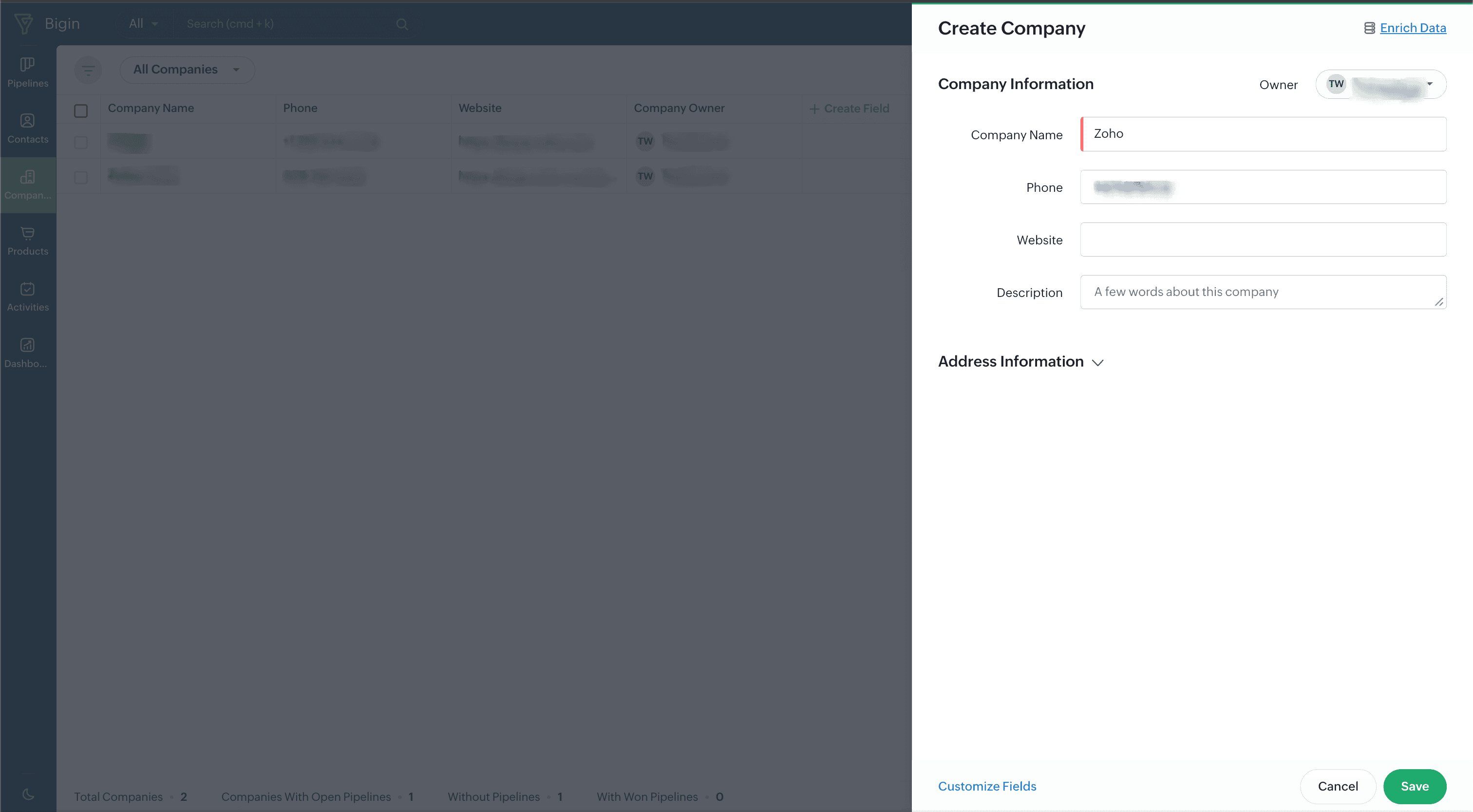
Understanding Enrichment Trigger Fields
Trigger fields are simply the data the topping uses to search and find matching enrichment information.
Customizing Trigger Fields
You have flexibility in selecting which fields initiate the enrichment process. To modify these settings, navigate to:
Setup > Toppings > Marketplace > Installed > Data Enrichment Powered by WebAmigo > Settings > Enrichment Trigger Fields > Edit
Trigger Field Combinations
To ensure accurate and successful data enrichment, make sure your trigger fields include at least one of the following field combinations.
For Contact Enrichment:
- Person Name & Company Name
- Person Name & Website
For Company Enrichment:
- Company Name
- Company Website
Uninstalling the Topping
If you decide to uninstall the Data Enrichment topping:
- Go to Settings > Toppings > Market Place > Installed
- Locate "WebAmigo Data Enrichment" in your installed toppings
- Select "Uninstall"
- Confirm your decision to uninstall